Feature flags
Turn features on for a share of people, hand out variants, try a flag in test before production, and fix it for testers.
A feature flag turns a feature on or off, or changes a value, for the people using your app without a new release. Your developers add the flag to the app once; from then on you control it in Studio.
Feature flags are in early access. Ask us on Discord, or email support@voidhash.com on a paid plan, to turn them on for your team.
Create a flag
- Open A/B testing → Feature flags and click New feature flag.
- Enter the Slug your developers use, such as
new-checkout. It must be unique in the project, archived flags included. - Add a Description of what the flag controls.
- Choose the Type. It can't change later.
- Click Create flag. The flag appears in the list; click it to open its page.
| Type | Hands out |
|---|---|
| Boolean | On or off. |
| String | One of its text variants, such as red or blue. |
| Number | One of its number variants. |
| JSON | One of its JSON variants, such as a configuration object. |
String, number and JSON flags need at least one variant, each with a Value and, except for JSON, an optional Label. Edit them under Variants on the flag's page; both environments share them.
A new flag is off in production and serves nobody. Changes on a flag's page apply only when you click Save changes; Discard drops them.
The list groups flags by On in production, Off in production and Archived. A flag whose test configuration differs from production's shows Test differs.
Environments
A flag is set up once for Production and, if you want, separately for Test. Apps built with a test key read the test configuration; everything else reads production's. The two tabs at the top of a flag's page switch between them.
- Test follows production until you click Customize for test. Until then, test apps get exactly what production gets, and you never have to think about it.
- After that, test has a configuration of its own, started from production's. Change it freely: switch the flag on in test while it stays off in production, or give a tester an override that exists only in test.
- The strip at the top of the tab says Test differs from production and in which parts, and each part that differs is marked Differs from production.
- Apply to production copies test's configuration to production, after which test follows production again. Reset drops test's configuration without touching production.
Like every other change, these apply when you click Save changes.
Turn a flag on
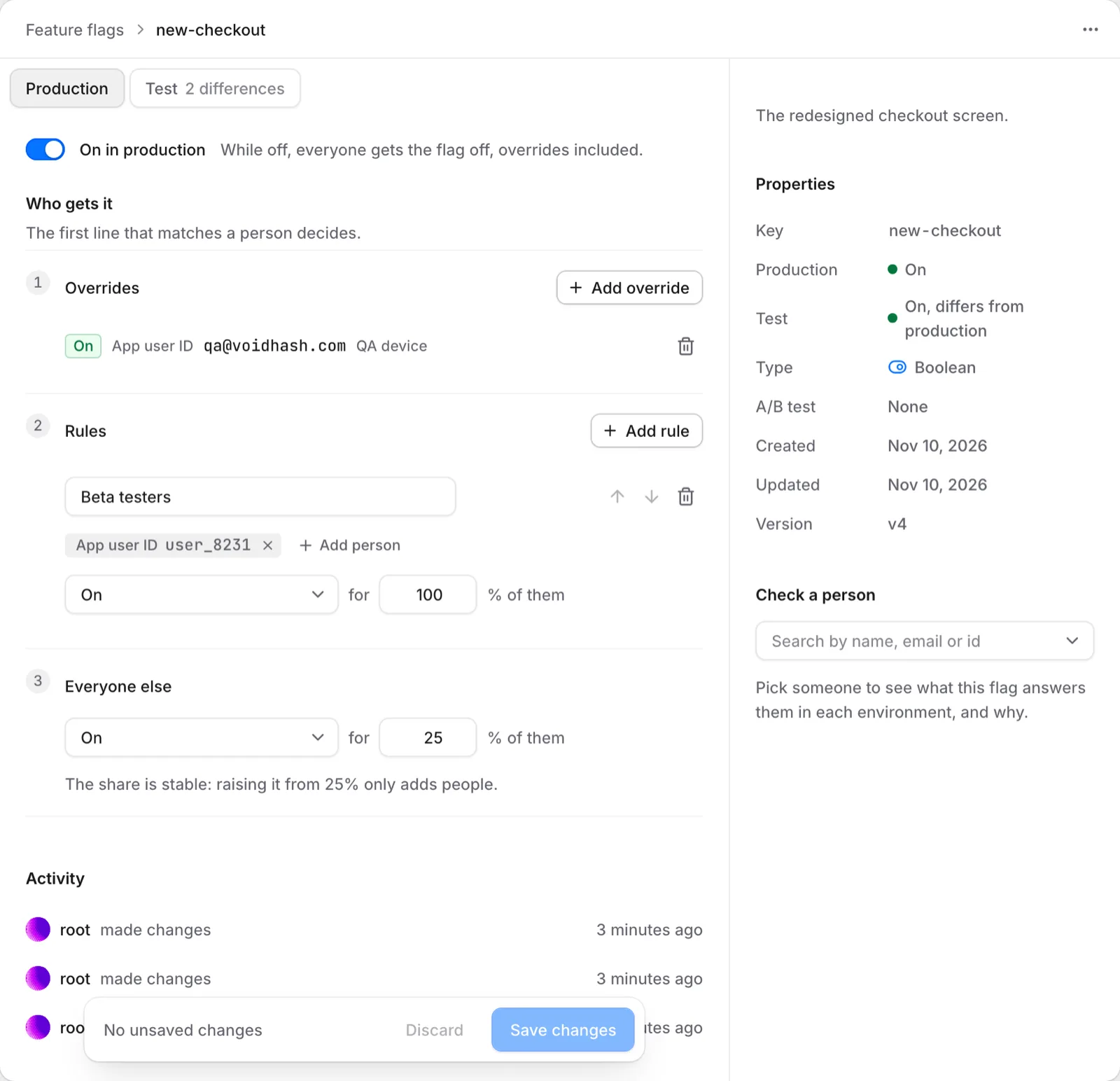 Who gets a flag in production, top to bottom in the order it is decided
- On the Production tab, turn the switch on. It then reads On in production.
- Under Everyone else, choose On and the share of people who get it, such as 25%. For a flag with variants, choose one variant or A split across variants.
- Click Save changes.
While the switch is off, everyone gets the flag off in that environment, overrides included. The rest of the configuration is kept. Archive and restore a flag from its menu; an archived flag keeps its slug, and apps fall back to their built-in default. Restore brings it back.
Who gets the flag
In each environment, a flag's page lists who gets it from top to bottom. For each person, Voidhash reads the lines in order and stops at the first that applies:
- The switch is off: off.
- The person has an override: what the override says.
- A rule names the person: what that rule gives. Rules are read in order.
- Everyone else: the flag for the share you set, off for the rest.
Voidhash stops at the first line that applies. Each person keeps the same answer, and variant, until you change the flag.
Each person keeps the same answer, and the same variant, until you change the flag. Raising a share only adds people; nobody who had the flag loses it. Someone who signs in may get a different answer than they had before signing in.
Overrides
An override fixes a flag for one person, such as a tester, whatever the rules say.
- Under Overrides, click Add override.
- Choose the Identity: App user ID for the ID your app signs people in with, Person ID, Email or External ID. Enter its Value.
- Under Gets, choose On, Off or one of the flag's variants, and add a Note (optional) saying why.
- Click Add override, then Save changes on the flag.
An override belongs to the environment whose tab you add it on. To give someone the flag in test only, add it on the Test tab. Overrides beat the rules, but not the switch. You can also add and remove a person's overrides on their profile in People; see Find and help a person.
Rules
A rule names people one by one and says what they get, such as the flag for your beta testers.
- Under Rules, click Add rule and give it a name.
- Click Add person for each person, choosing the Identity and entering its Value.
- Choose what they get and the share of them who get it.
- Click Save changes.
Rules are read from the top, and the arrows on a rule move it up or down. A rule that gives Off keeps its people from getting the flag. To limit a flag to the people of a rule, set Everyone else to Off.
There are no rules by country, app version or other details yet. To compare paywalls, run an A/B test.
Check a person
Check a person, beside the configuration, answers the question support gets most: what does this person get, and why? Pick someone and it shows the flag's answer for them in production and in test, with the line that decided. It reads what is saved, so save your changes first.
History
Version counts changes to a flag. The change history at the bottom of the flag's page lists the flag's creation, changes to its slug, name and description, each change to who gets it in an environment, and archiving and restoring, with the user ID of whoever made it, or System, and when; Changes shows the details.
Variant changes and overrides set on a person's profile don't show there. They're kept in the audit log. Only admins and the owner can read either; Members see "Could not load activity." See Members and roles.
If something's off
- Nobody gets the flag: check the switch is on in the environment the app reads, Everyone else gives the flag to a share above 0%, and you clicked Save changes.
- It works in production but not in a test build: open the Test tab. If test has a configuration of its own, it no longer follows production; change it there, or click Reset.
- A tester doesn't get it: add an override for them, in the environment their app reads.
- A change hasn't reached the app, or the flag isn't updating: apps pick up a change the next time they read the flag, usually within about 5 minutes.
- Create flag does nothing: the slug is already used in the project, archived flags included, or you're a Member.
- Save changes says you're not allowed: Members can open flags but not change them; see Members and roles.
- A variant can't be removed: an environment still gives it to someone. Change that line first, then remove the variant.
Next steps
Still stuck? Check Troubleshooting, ask us on Discord, or email support@voidhash.com on a paid plan.
Something wrong or missing on this page? Tell us by email or on Discord.